Where the world
is going next.
The trending destinations, the coolest new stays, the deals worth chasing and the gear worth packing. Then plan the whole trip with our free tool, cash against points, mapped in one place.
Plan a multi-stop trip
in minutes.
Build a route across as many stops as you like, price every flight in cash or points across all the major programs, watch the true total update live, then share it or export a clean PDF.
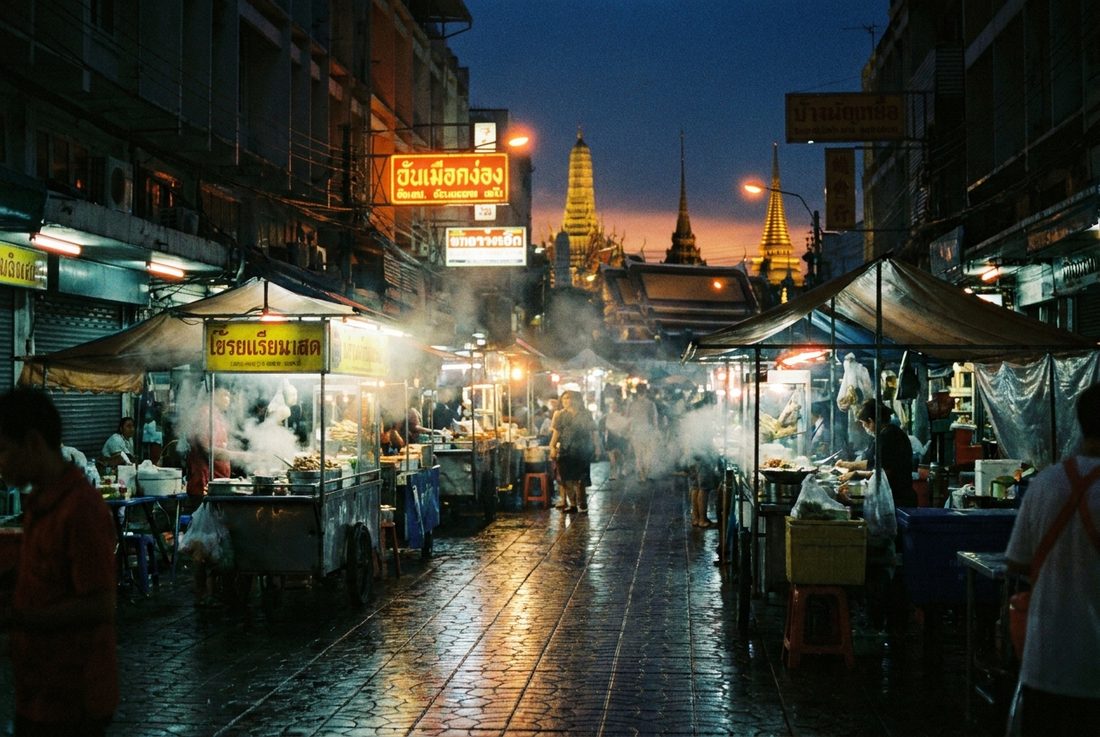
Bangkok
The most booked city on earth right now, all street food and neon temples.
Read the story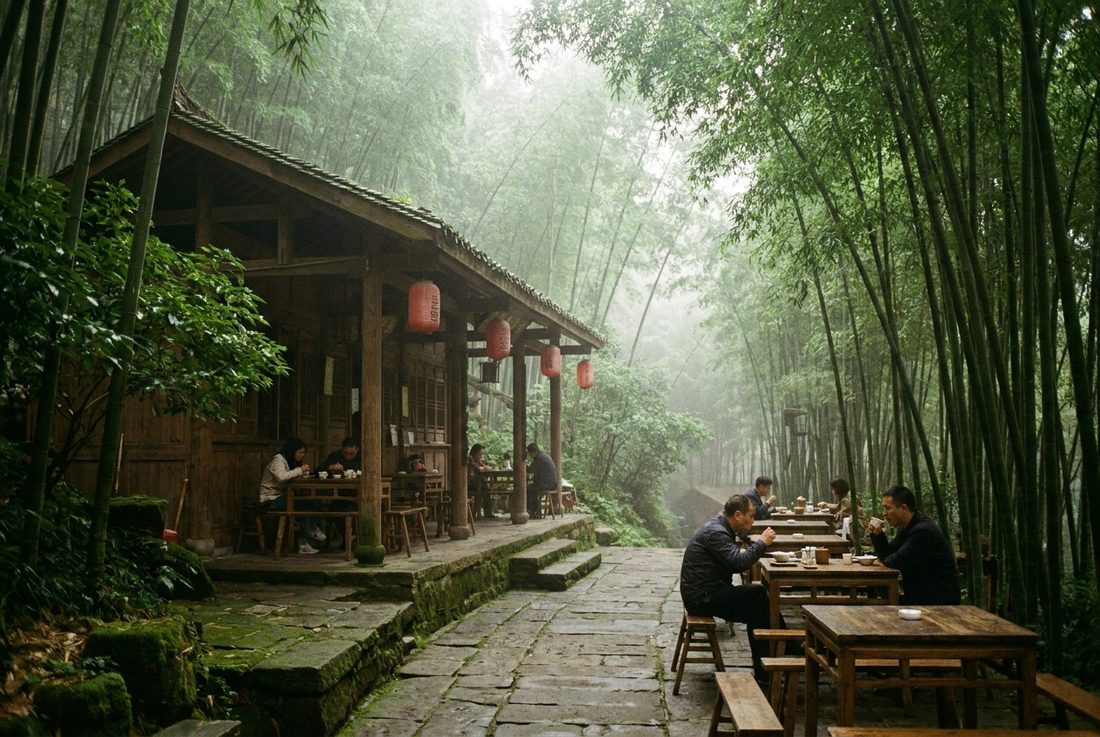
Chengdu
Pandas, hotpot and a design-led luxury scene three thousand years in the making.
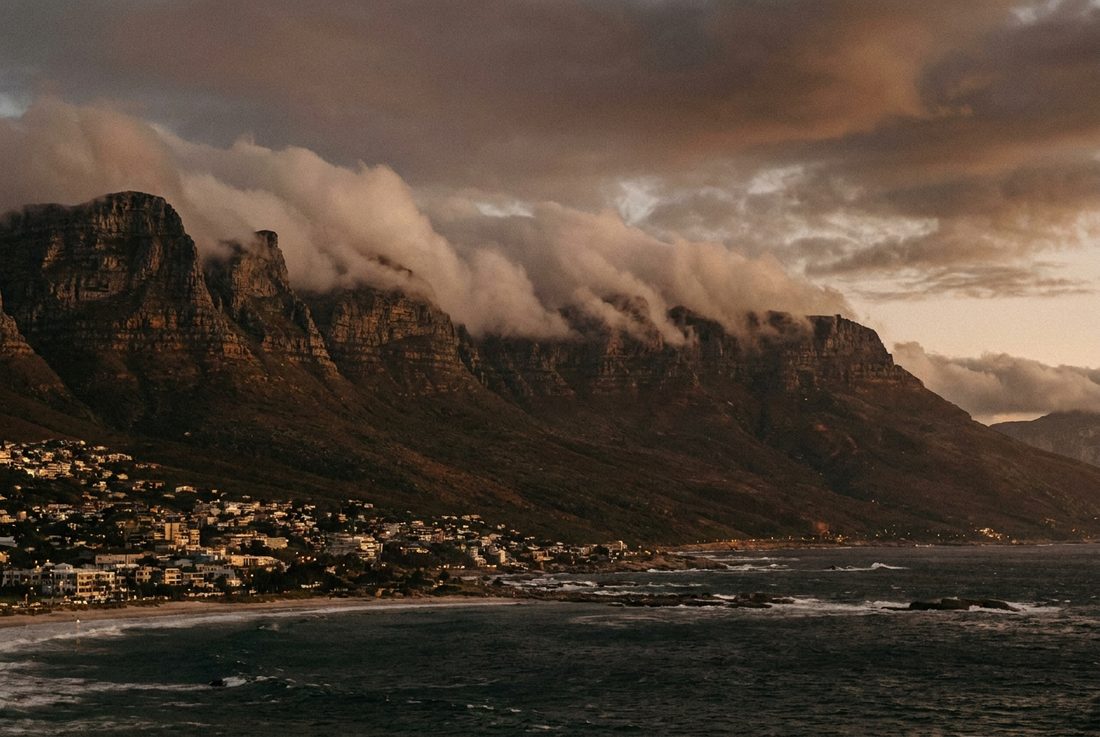
Cape Town
A food and art capital with mountains, wine and fresh hotel openings.
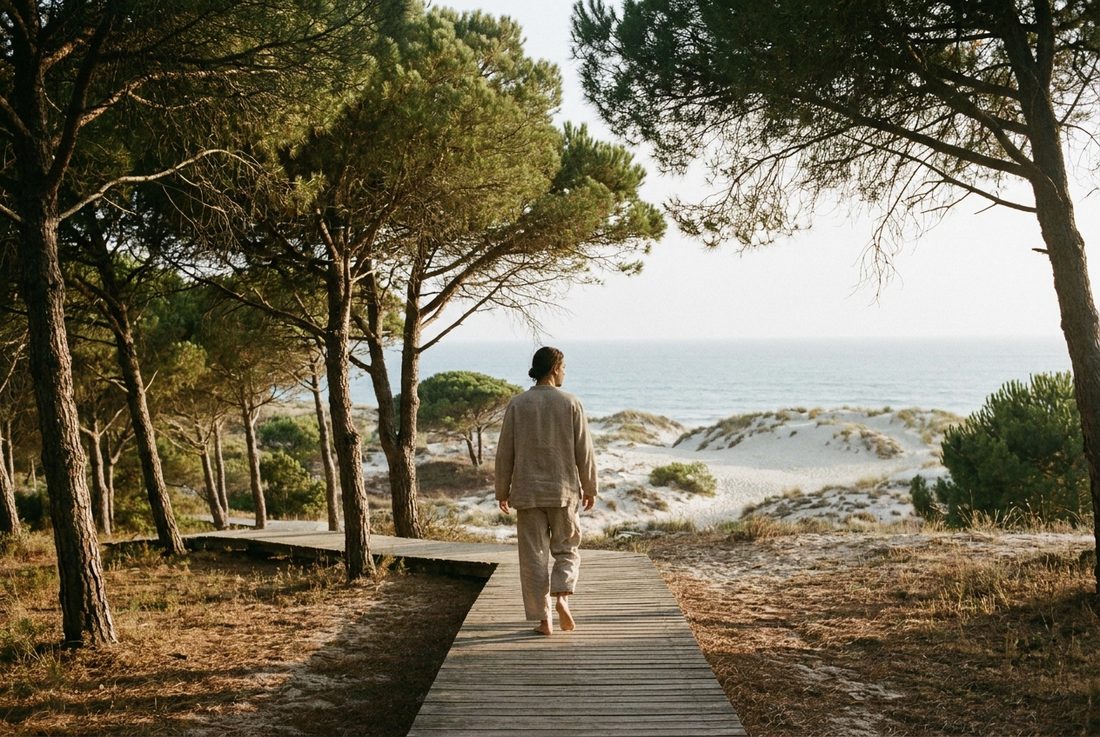
Comporta
The barefoot-chic answer to the Hamptons, an hour south of Lisbon.
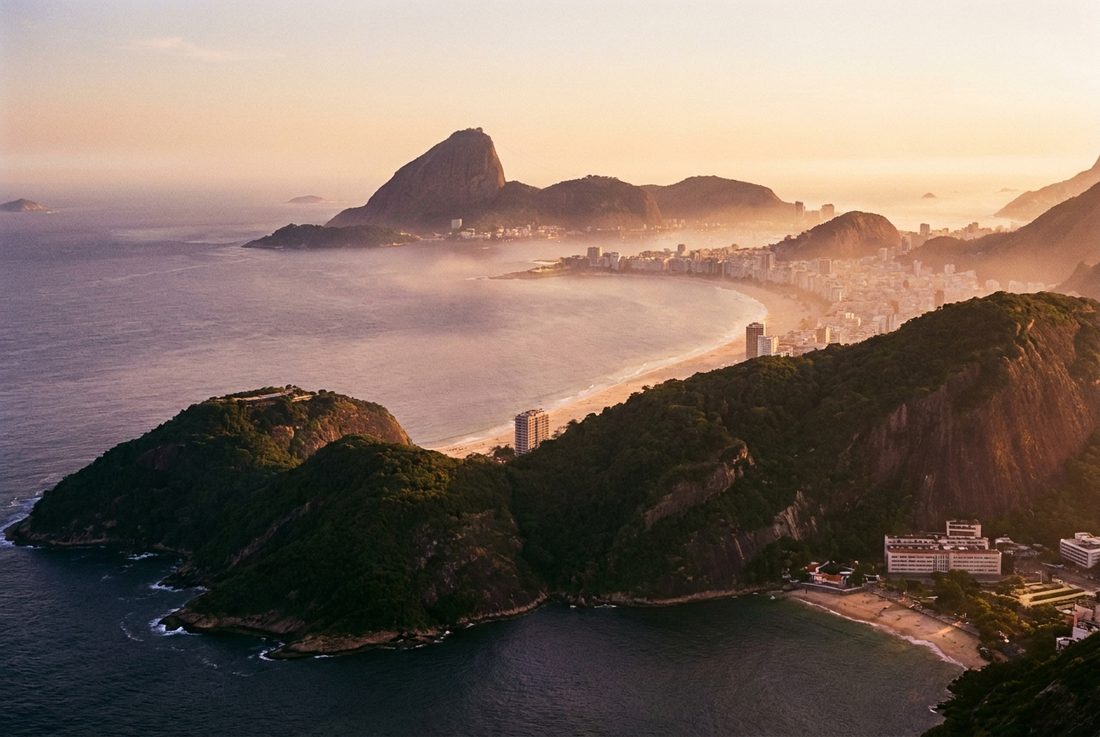
Rio de Janeiro
Beaches, samba and Carnival at full volume.
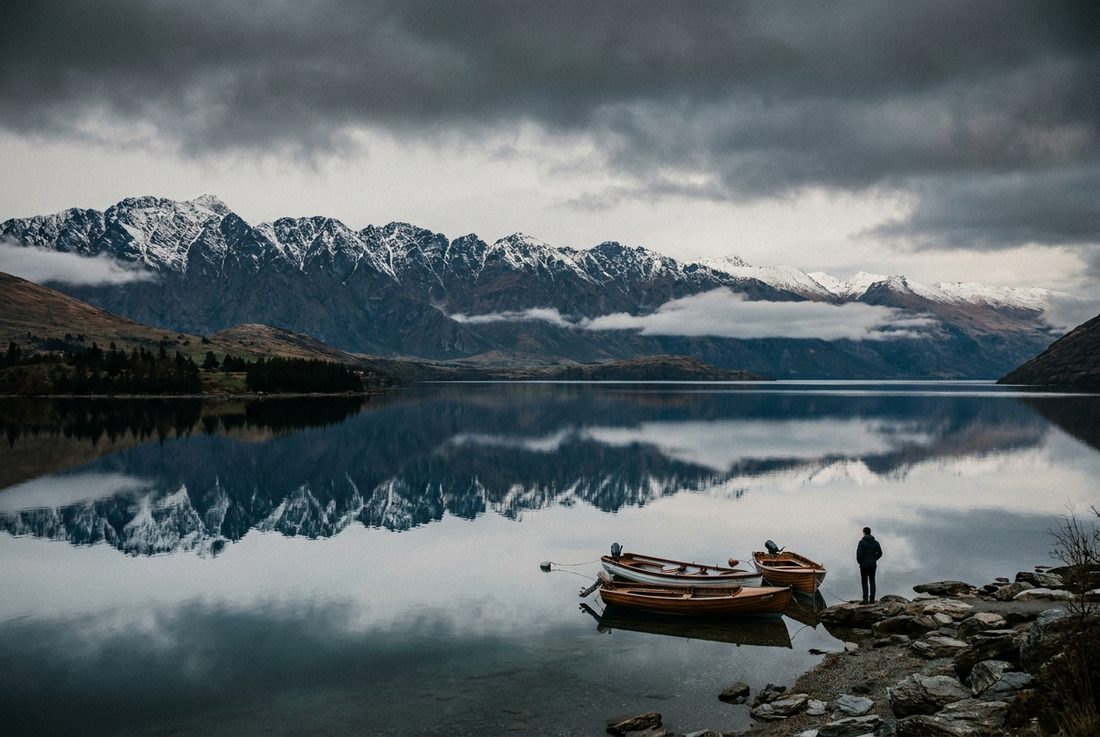
Queenstown
Adventure capital of the south, framed by alps and lakes.
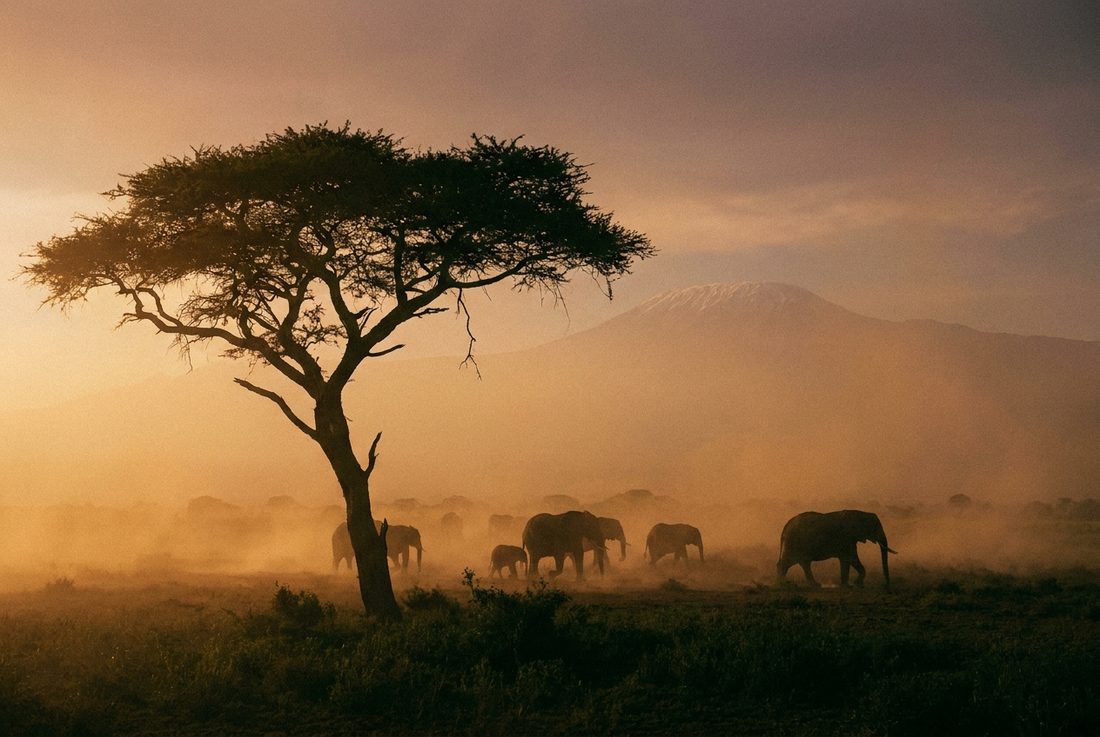
Africa
Safari renaissance

Asia
The top-booked continent
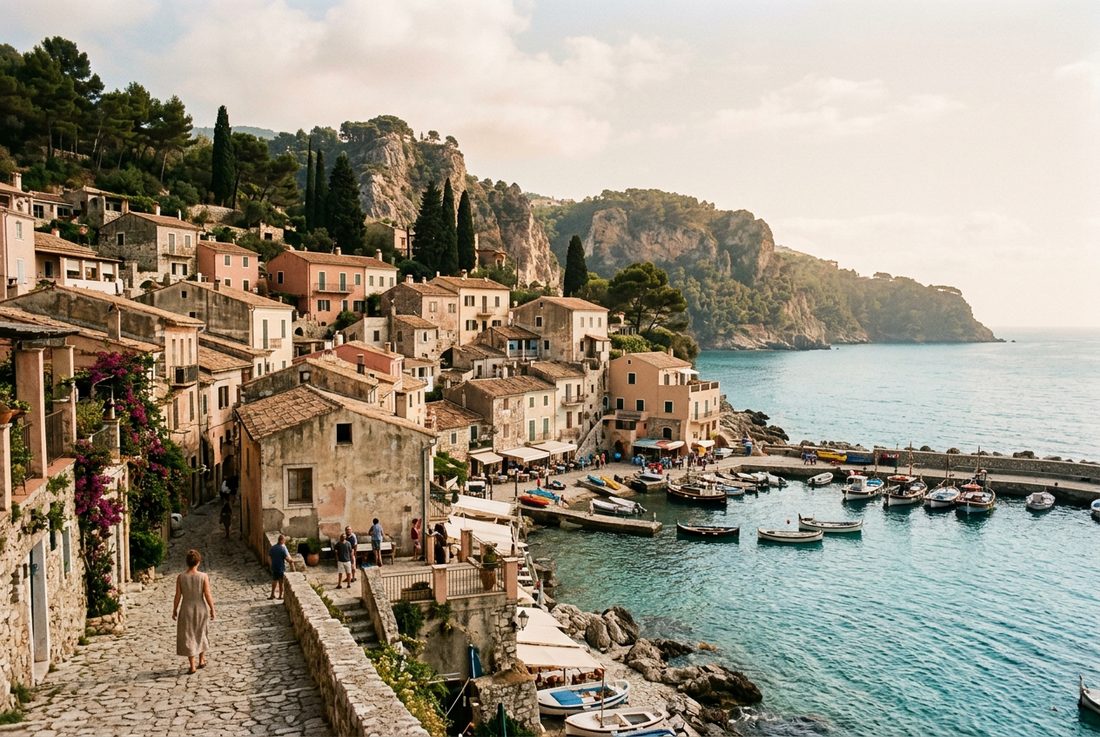
Europe
Rail is back
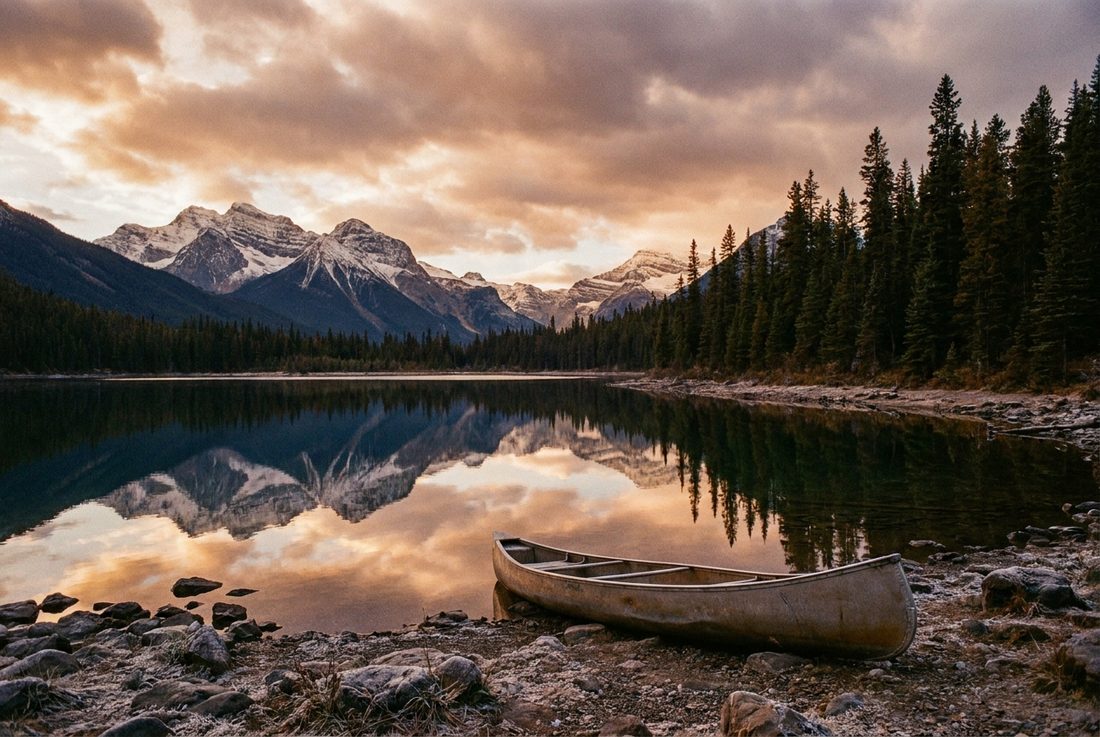
North America
Wide-open luxury
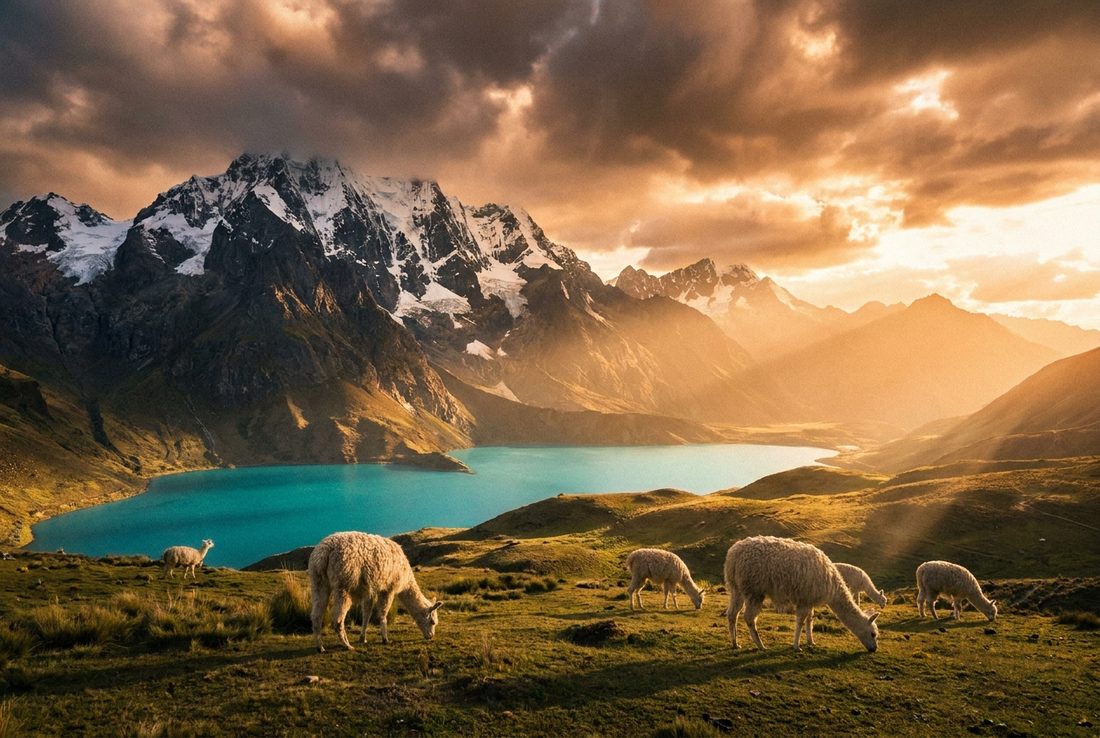
South America
Carnival and the Andes
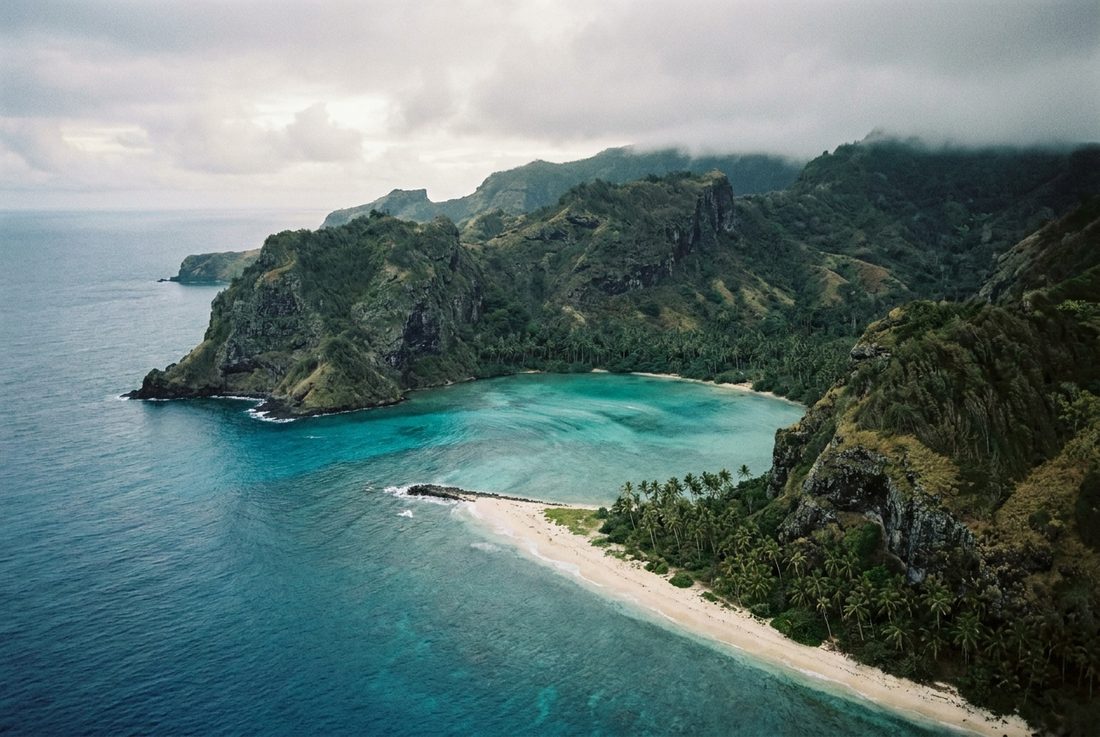
Oceania
Lakes, reefs and rail
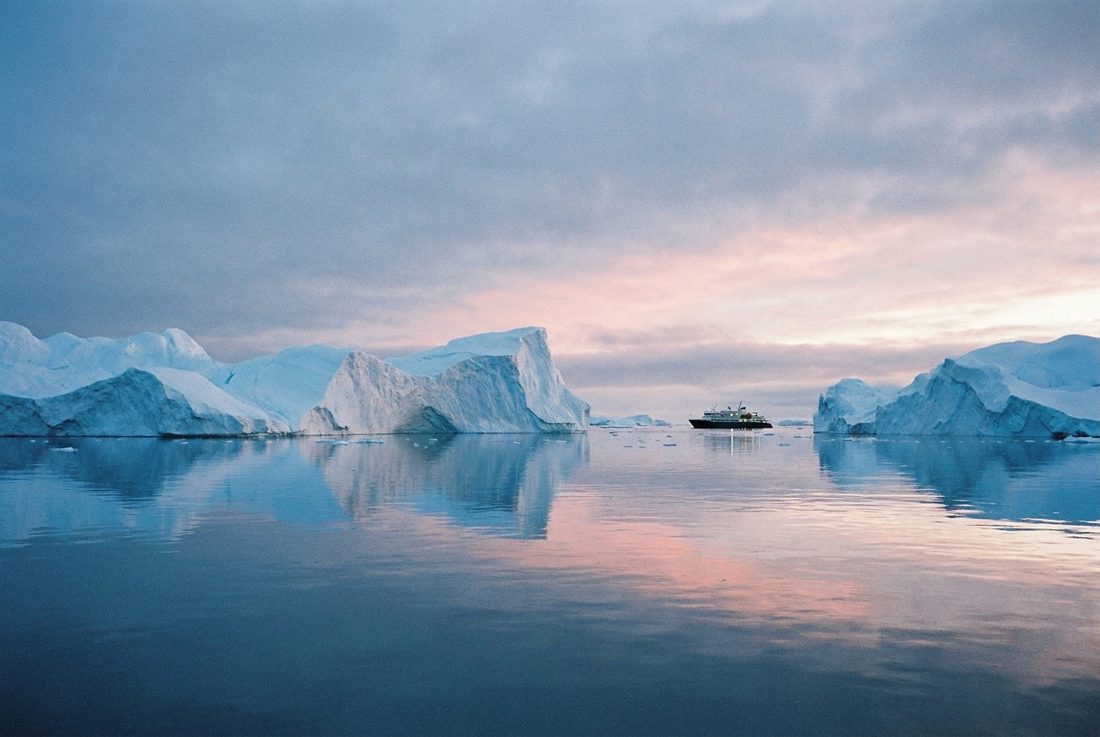
Antarctica
The last frontier
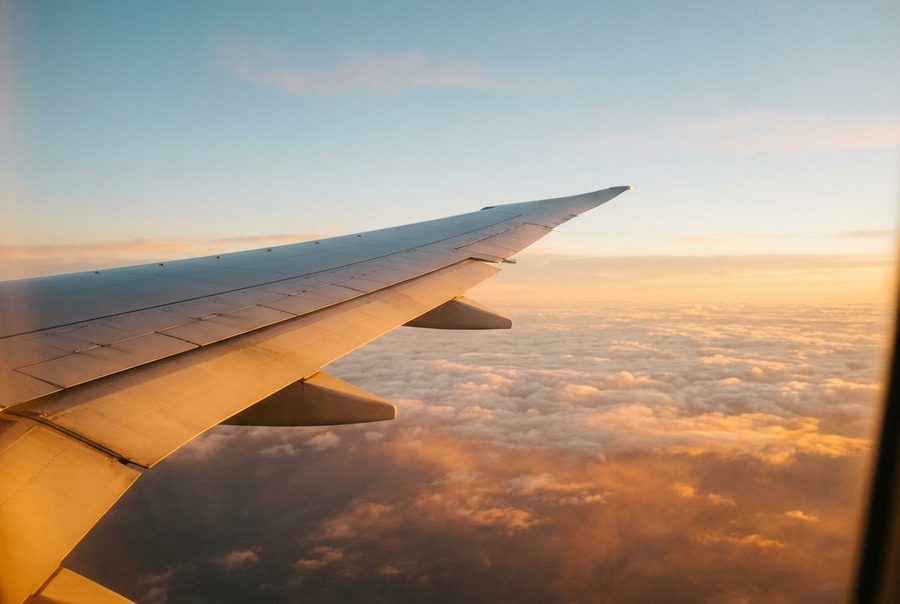
Sub-$750 round trips
Long-haul fares dropping across summer, with Friday now the cheapest day to fly.
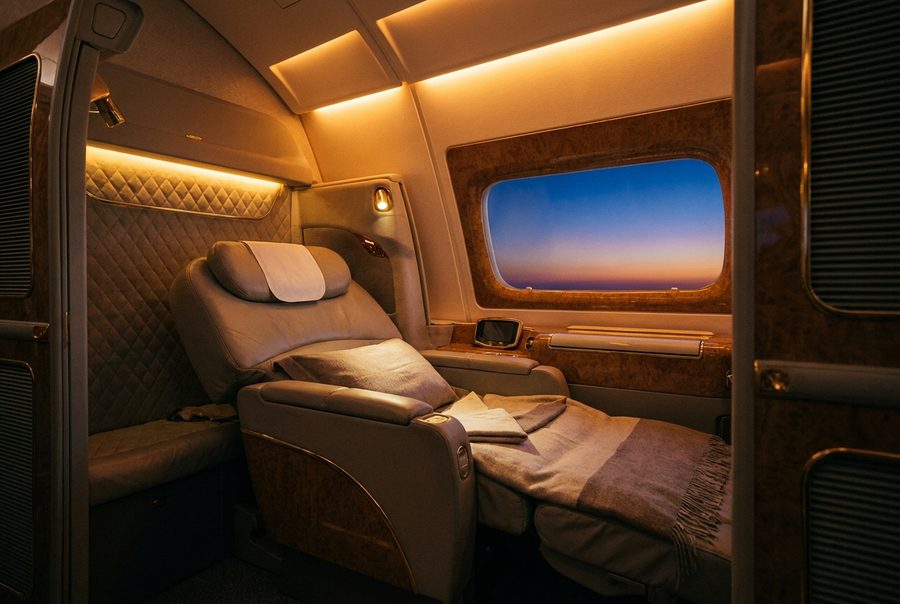
Transfer bonuses live
Card points to airline miles at boosted rates. Price cash against points before you book.
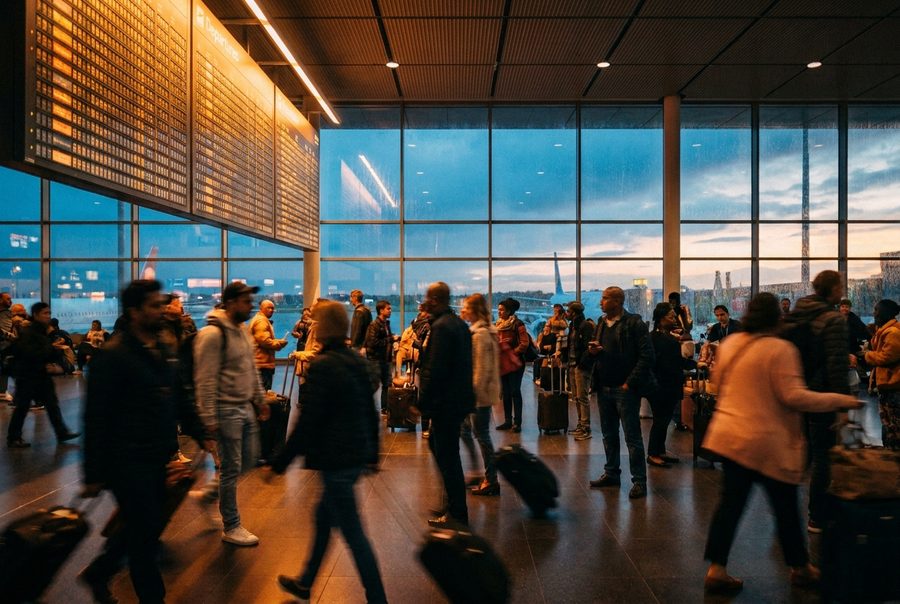
Mistake fares tracker
Rare pricing errors surface and vanish fast. Move quickly, book refundable.
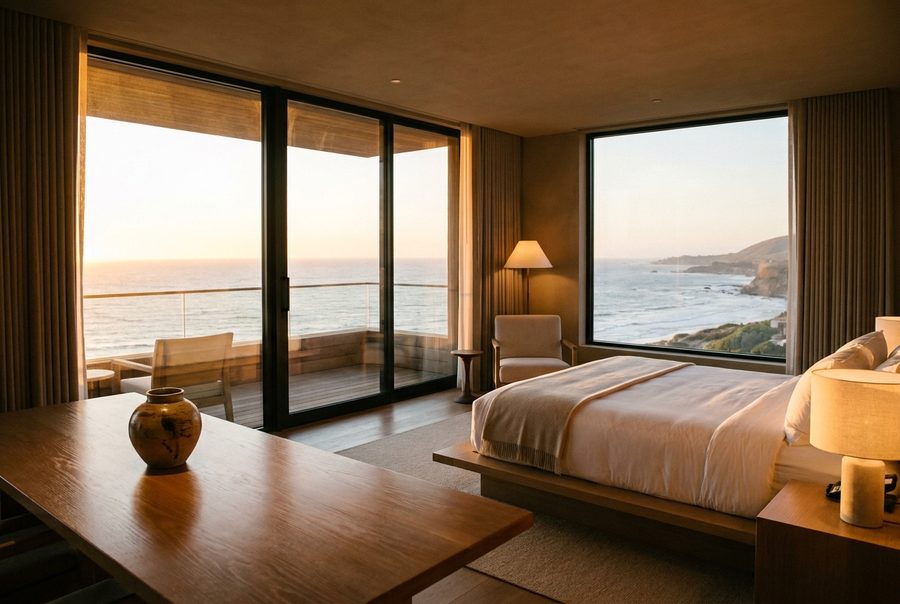
Shoulder-season suites
Marquee openings discount their opening months. Go before the crowds arrive.
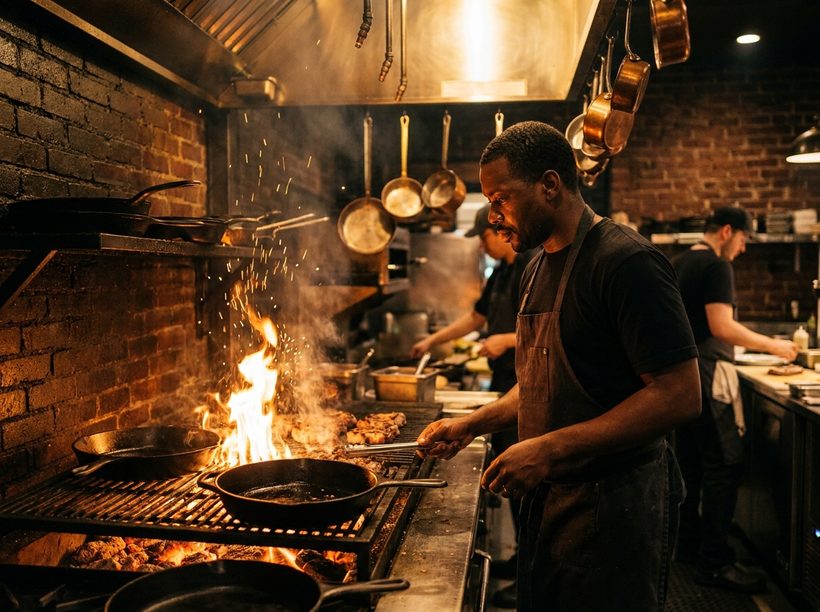
Emberlin
Open-fire cooking from three-Michelin-star Bjorn Frantzen.
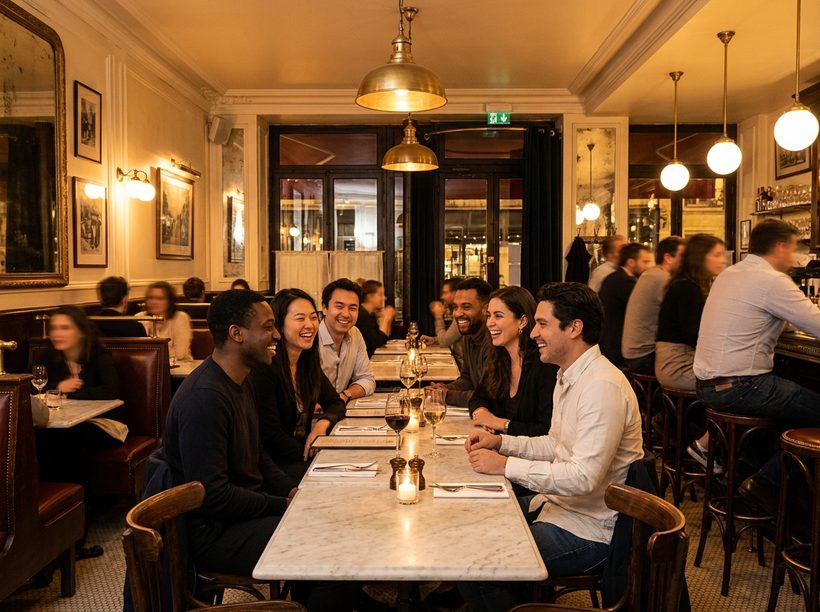
Cafe Boulud
Daniel Boulud's French bistro returns after five years away.
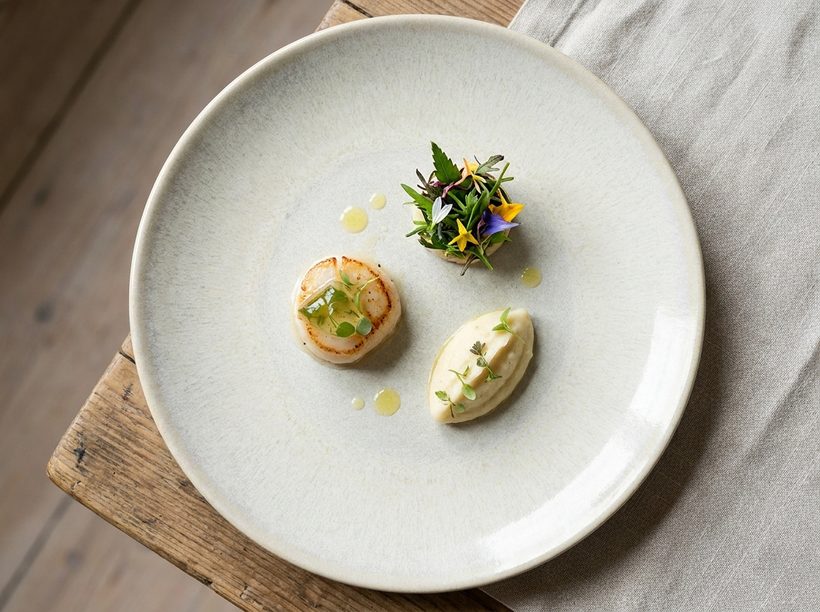
SoNoMa by SingleThread
The celebrated California team's first restaurant abroad.
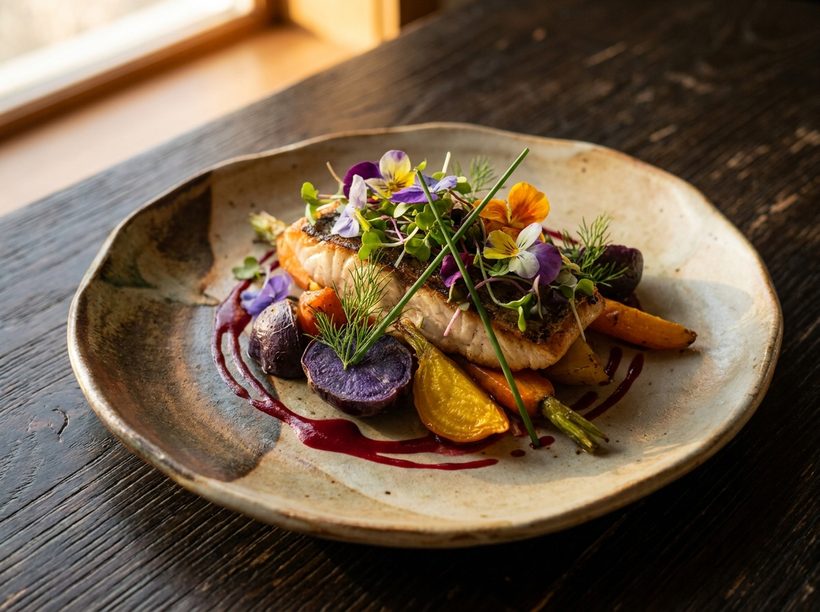
Boro
Native Colombian ingredients from a World's 50 Best alumnus.
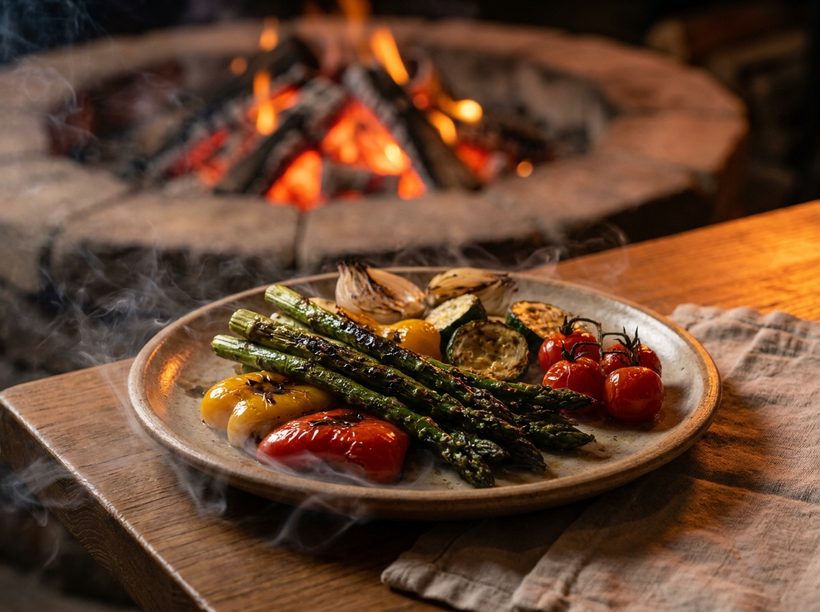
Window
Live-fire vegetables and ember-kissed grilling from the Kokoro team.
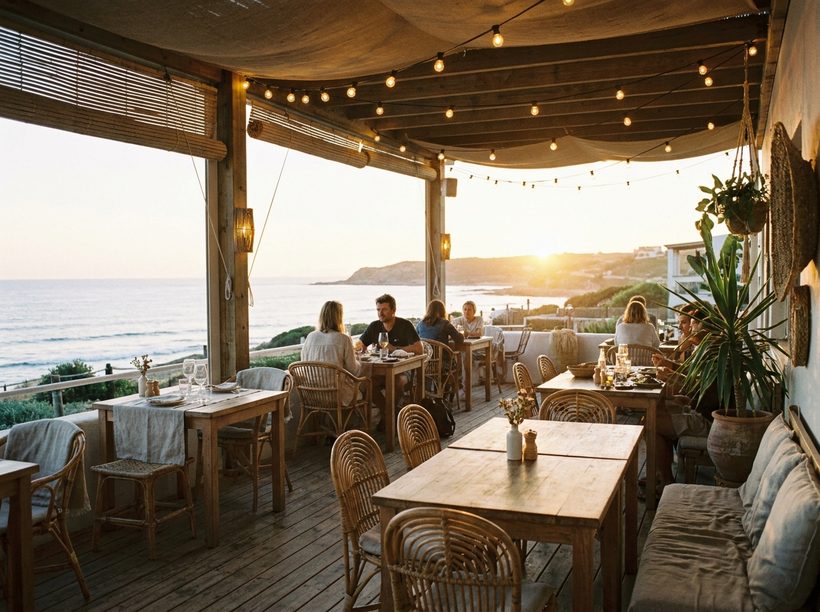
The Belongil
Four concepts on the coast from a Vue de Monde legend.
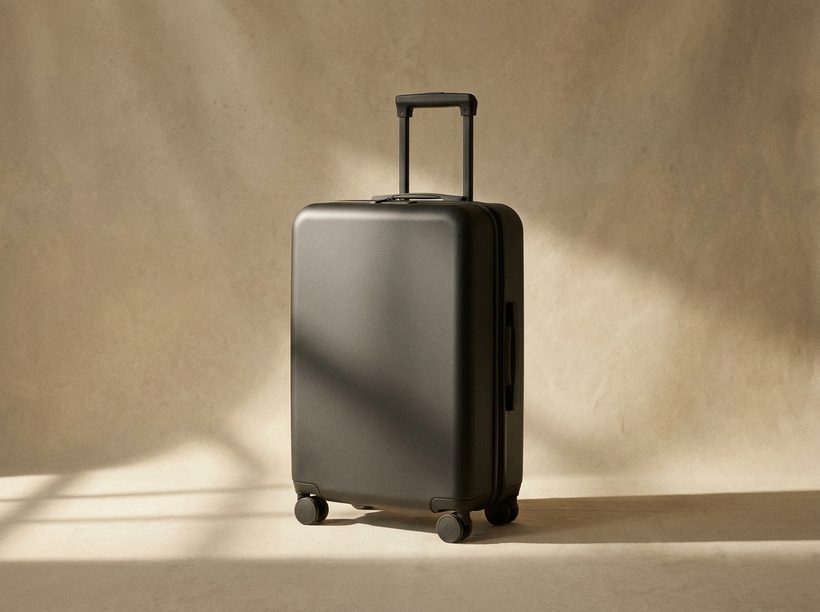
The everyday carry-on
A hard-shell case that clears every sizer and rolls like glass.

Noise-cancelling earbuds
Silence the cabin, keep your neck free of a headband.
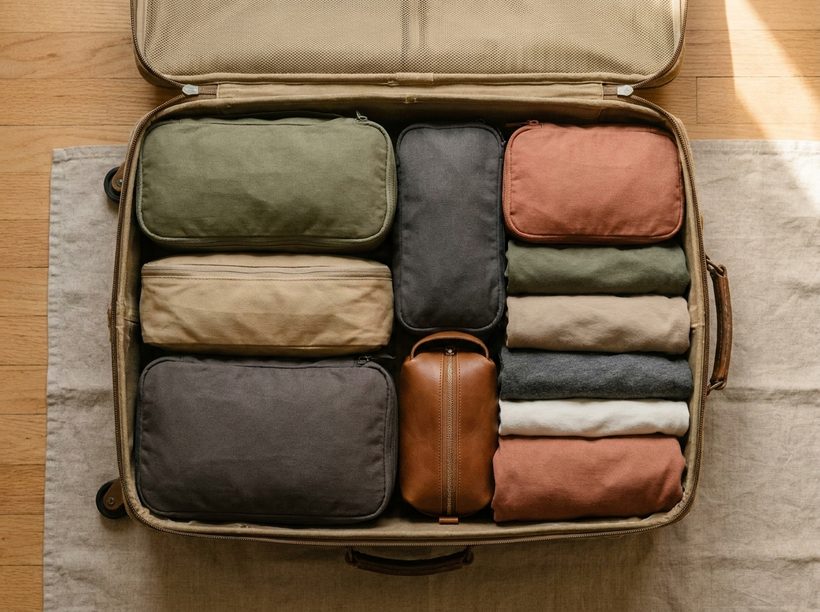
Compression packing cubes
Fit a week into a carry-on and land wrinkle-free.
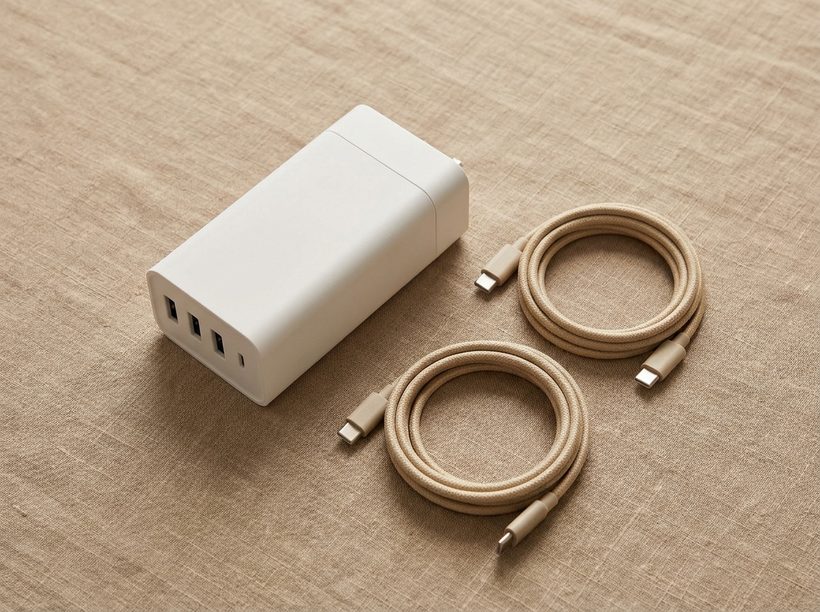
The universal adapter
One plug for every socket, with fast USB-C built in.
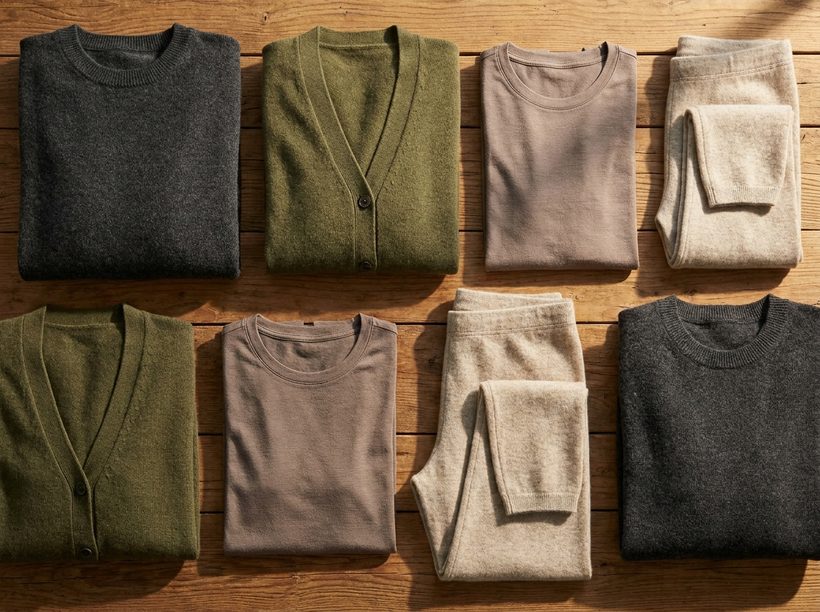
Merino travel layers
Odour-resistant knits you can wear for days between washes.
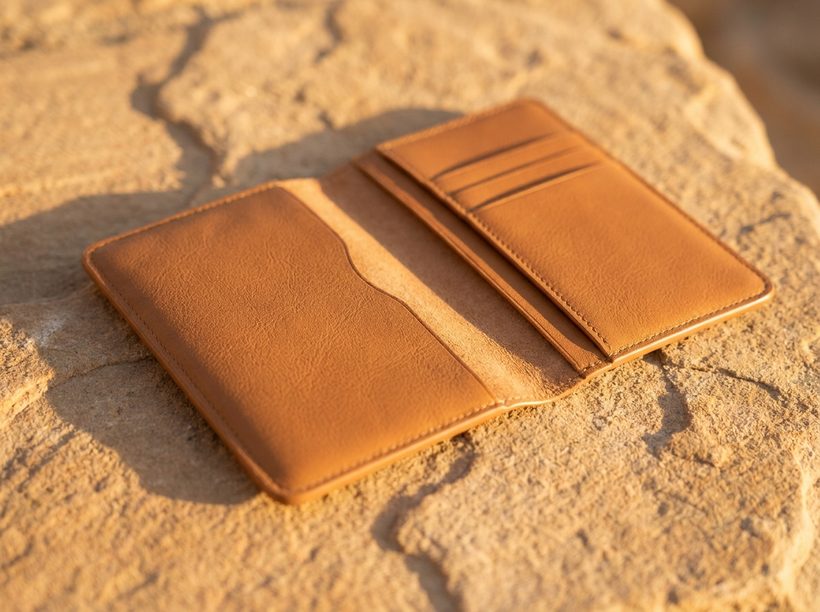
A slim leather passport folio
The NLGHTND everyday folio, made to be handed down.

Rimowa
Grooved aluminium icons that last a lifetime.
Monos
Quiet, minimalist cases with a cult following.
Away
The brand that made the smart carry-on mainstream.
Beis
Playful, colour-forward travel gear for the feed.
July
Australian-designed cases built to be repaired, not replaced.
Calpak
Design-led luggage at an approachable price.
Where everyone is going
The most searched and most booked places on earth for 2026.
Bangkok
The most booked city on earth right now, all street food and neon temples.
Read the storyChengdu
Pandas, hotpot and a design-led luxury scene three thousand years in the making.
Read the storyCape Town
A food and art capital with mountains, wine and fresh hotel openings.
Read the storyComporta
The barefoot-chic answer to the Hamptons, an hour south of Lisbon.
Read the storyRio de Janeiro
Beaches, samba and Carnival at full volume.
Read the storyQueenstown
Adventure capital of the south, framed by alps and lakes.
Read the storyThe world in seven
The coolest new hotels, lodges and escapes, sorted by continent.
Africa
Baines' Lodge
Six glass-fronted suites with wildlife viewing from the common areas.
Wilderness Magashi Peninsula
Three suites on a private peninsula with no connecting paths.
Cape Town boutique stays
A booming food and gallery city with fresh design-led openings.
- Amboseli, KenyaConservation-led safari under Kilimanjaro, along protected elephant corridors.
- The Grand Egyptian MuseumAncient wonders reframed, paired with design-forward Nile cruising.
Asia
Layan wellness resorts
The quiet northwest coast, built around slow, restorative days.
Design-led Chengdu
Three thousand years of culture meeting modern luxury.
Bhutan lodges
High-value, low-volume travel built on Gross National Happiness.
- BangkokThe most searched and most booked city in the world for 2026.
- MongoliaVast, intentionally slow landscapes for purpose-driven travel.
Europe
Orient Express La Minerva
The reborn Orient Express brand, Art Deco with red-marble showers.
Na Praia, Comporta
A fashionable, sustainable seaside escape south of Lisbon.
Pensione America
An 18-room revival of la dolce vita Italy.
- Italy by railHeritage journeys on the Orient Express and Venice Simplon routes.
- Istria, CroatiaVineyards, truffles and hill towns, the Tuscany of Croatia.
North America
One&Only Moonlight Basin
The brand's North American debut, 19 cabins with private slope access.
Siari Riviera Nayarit
A Ritz-Carlton Reserve rooted in Huichol healing and a Fazio golf course.
Tumbling River Ranch
A historic Coors family retreat reborn as a five-star dude ranch.
- Milpero, DenverAn 18-course masa tasting menu from chef Johnny Curiel.
- Los Cabos fire cookingPib brings Mayan fire-pit cooking to the beach from a Quintonil team.
South America
Andean Tinajani
Six Nordic-inspired tents at 12,000 feet on a former sheep farm.
Rio de Janeiro
The city spikes into life around its iconic Carnival.
Florianopolis
Island beaches and surf on Brazil's rising southern coast.
- Boro, MedellinNative Colombian ingredients from a Celele team.
- Patagonia by small shipFjords, glaciers and wildlife on intimate expedition sailings.
Oceania
Roki Collection
An all-suite lakefront hotel with a helicopter-access penthouse.
The Ghan, Aurora Suites
New suites crossing the Australian outback in high style.
Byron Bay
The Belongil brings four dining concepts to the coast.
- Yiaga, MelbourneAustralian flora and fauna from an ex-Vue de Monde chef.
- Great Barrier ReefReef days and rainforest nights on the Queensland coast.
Antarctica
Expedition cruises
Small-ship sailings among icebergs, whales and penguin colonies.
Fly-cruise crossings
Skip the Drake by air, then sail the peninsula in comfort.
- South GeorgiaKing penguin colonies and Shackleton history on remote shores.
- Polar photographyZodiac cruising for once-in-a-lifetime wildlife encounters.
Worth chasing
Fares, points and openings moving right now. Price them in the planner.
FlightsSub-$750 round trips
Long-haul fares dropping across summer, with Friday now the cheapest day to fly.
Compare faresPointsTransfer bonuses live
Card points to airline miles at boosted rates. Price cash against points before you book.
Open the plannerError faresMistake fares tracker
Rare pricing errors surface and vanish fast. Move quickly, book refundable.
How mistake fares workStaysShoulder-season suites
Marquee openings discount their opening months. Go before the crowds arrive.
See staysWho to pack with
The travel labels shaping how the world moves.
Rimowa
Grooved aluminium icons that last a lifetime.
ReadMonos
Quiet, minimalist cases with a cult following.
ReadAway
The brand that made the smart carry-on mainstream.
ReadBeis
Playful, colour-forward travel gear for the feed.
ReadJuly
Australian-designed cases built to be repaired, not replaced.
ReadCalpak
Design-led luggage at an approachable price.
ReadGear worth packing
Editor-tested essentials, from carry-ons to cables.
The everyday carry-on
A hard-shell case that clears every sizer and rolls like glass.
Noise-cancelling earbuds
Silence the cabin, keep your neck free of a headband.
Compression packing cubes
Fit a week into a carry-on and land wrinkle-free.
The universal adapter
One plug for every socket, with fast USB-C built in.
Merino travel layers
Odour-resistant knits you can wear for days between washes.
A slim leather passport folio
The NLGHTND everyday folio, made to be handed down.
Book before they fill
The new restaurants and experiences travelers are flying for.
Emberlin
Open-fire cooking from three-Michelin-star Bjorn Frantzen.
Cafe Boulud
Daniel Boulud's French bistro returns after five years away.
SoNoMa by SingleThread
The celebrated California team's first restaurant abroad.
Boro
Native Colombian ingredients from a World's 50 Best alumnus.
Window
Live-fire vegetables and ember-kissed grilling from the Kokoro team.
The Belongil
Four concepts on the coast from a Vue de Monde legend.
Read the world.
Then go.
Turn any of this into a real itinerary. Build your route, compare cash and points, and share the plan in minutes.